

Introduction
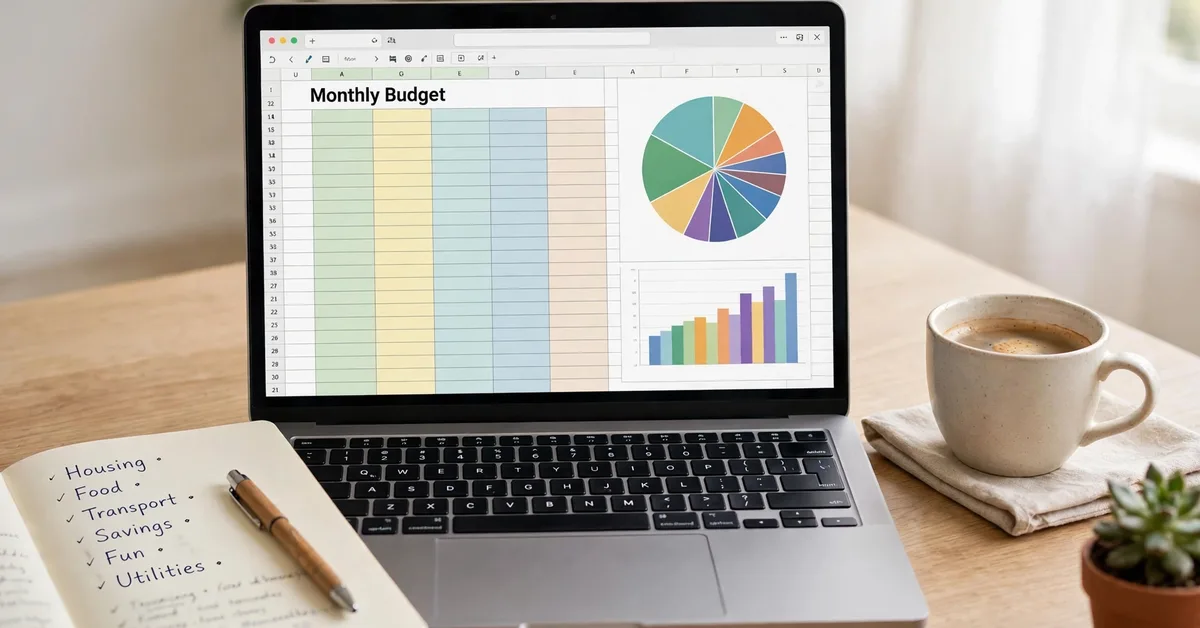
A free budget template for Google Sheets is a ready-made spreadsheet that tracks income and spending with built-in formulas, and you can copy one into your own Google Drive in about 2 minutes with no email sign-up and no payment. Google Sheets runs in a browser and on a phone, so the same file works at your desk and at the store. This guide shows how to copy a free template in 5 steps, compares the 5 best free Google Sheets budget templates in 2026, and walks through building your own 3-tab template in 15 minutes with 8 formulas. You also get a worked month with real numbers, a plan for irregular income, phone and sharing setups, a Google Sheets vs Excel comparison, 7 mistakes to avoid, and a 30-day routine that keeps the habit alive.
Key Takeaways
- A free budget template for Google Sheets is a pre-built spreadsheet with formulas that add up income, spending, and money left over, and the best ones cost nothing to copy and use month after month.
- Start with Google’s built-in Monthly Budget template, since it takes 5 minutes to open and works on every device with the Sheets app.
- A 3-tab file (Transactions, Categories, Dashboard) with 8 formulas covers every beginner need, and you only ever type into one tab.
- Budget take-home pay, not salary, and use the last 2 months of bank statements to set real numbers.
- Check the dashboard for 10 minutes each week, and move money between categories when life changes the plan.
What Is a Free Budget Template for Google Sheets?
A free budget template for Google Sheets is a pre-built spreadsheet that tracks monthly income and spending with formulas, so you type in what you earn and spend and the sheet calculates totals, category balances, and money left over. Google Sheets is a free web-based spreadsheet app included with a Google account, and it works in a browser and on a phone with no install and no fee (Source: Wikipedia (2026)). A budget template is a file someone else already built, with the columns, categories, and formulas in place.
A good template has 3 parts. The Transactions tab holds one row per purchase, with date, description, category, and amount. The Categories tab lists each spending category and the amount you plan to spend. The Dashboard tab pulls the numbers together and shows budgeted, spent, and remaining for each category, plus one chart. The Personal Finance guides on Savvy Cash Flow cover each part of a first budget in more depth. If you want the basic money terms first, read our guide on what is a budget.
A template does not fix a budget by itself. It shows where the money goes, and the fixing is still up to you. The value is speed: a blank sheet takes an hour to build and often has broken formulas, while a template works the moment you copy it.
How Do You Copy a Free Budget Template in Google Sheets?
To copy a free budget template in Google Sheets, open the template link, sign in to your Google account, choose File, then Make a copy, and the copy lands in your own Drive in about 2 minutes, ready to edit. You never edit the original file. Your copy is private, and nobody else can see it unless you share it.
Follow these 5 steps for any free template:
- Open the template link from the publisher’s page.
- Sign in to the Google account you want the file in.
- Choose File, then Make a copy, and confirm the name and folder.
- Rename the copy with the month, such as “Budget November 2026”.
- Type your take-home pay and your first category amounts, and check that the totals change.
Two checks save trouble later. First, confirm the copy asks for no add-on permission: a formulas-only template never asks you to authorize anything. Second, check that the template has a Transactions tab you type into and a Dashboard tab you only read, since that split keeps formulas safe.

The 5 Best Free Google Sheets Budget Templates in 2026
The 5 best free Google Sheets budget templates in 2026 are Google’s built-in Monthly Budget, the Vertex42 Monthly Budget, Aspire Budgeting, the Sheets Bootcamp Budget Tracker, and the Tiller Foundation Template free version, and the right pick depends on one month or a year, solo or household, and simple tracking or zero-based budgeting. Every template below is free for its core use, with no email sign-up and no payment for the file itself. Our roundup of free budget spreadsheet templates covers more formats, including Excel and printable sheets.
| Template | Best for | Cost | Setup time | Main weakness |
|---|---|---|---|---|
| Google Sheets Monthly Budget (built-in) | Starting today | Free | 5 minutes | Generic default categories |
| Vertex42 Monthly Budget | More category detail | Free | 10 minutes | Personal-use licence only |
| Aspire Budgeting | Ongoing zero-based system | Free core | 15 minutes | Paid Turbo upgrade for CSV import ($5/month) |
| Sheets Bootcamp Budget Tracker | A full year in one file | Free | 10 minutes | 30 categories can feel busy at first |
| Tiller Foundation Template (free version) | A manual template with an automation path | Free | 15 minutes | Bank feeds need a paid plan ($99/year after a 30-day trial) |
Google’s built-in Monthly Budget is the fastest start. Open Google Sheets, choose Template gallery, and look under Personal for Monthly budget. It tracks monthly income and expenses, totals spending by category, and includes a summary chart. The same gallery holds an Annual budget with 12 months on one file, which suits lumpy costs such as insurance in January and holidays in December.
The Vertex42 Monthly Budget is more polished than Google’s built-in version, with better formatting and more category depth, and it works in Excel, Google Sheets, and LibreOffice. Vertex42’s Personal Budget Spreadsheet has passed 1.3 million downloads (Source: NextGenTemplates (2026)). The licence is for private use, not for redistribution or resale.
Aspire Budgeting is a free Google Sheets budget template built around digital envelopes. You allocate the money you have to categories, record transactions, and adjust categories when priorities change. The core is free and includes a dashboard, category rollovers, and spending reports. The optional Turbo upgrade costs $5 a month and adds CSV import (Source: GlowFindsHub (2026)).
The Sheets Bootcamp Budget Tracker covers 12 months in one file, with 30 category slots, 500 transaction rows, and a dashboard that recalculates for the month you pick. It ships with 15 starter categories you can rename or delete, and it runs on formulas only, with no scripts or add-ons.
The Tiller Foundation Template free version gives monthly and yearly views with charts, category tracking, and a transactions sheet. It works as a standalone manual template, and the paid plan adds automatic bank feeds at $99 a year after a 30-day trial (Source: TheSchicht (2026)).
How to Build Your Own Free Budget Template in Google Sheets in 15 Minutes
To build your own free budget template in Google Sheets, create 3 tabs named Transactions, Categories, and Dashboard, add 8 to 12 categories with a need, want, or save label, and add the 8 formulas from the next section, which takes about 15 minutes and gives you exactly your categories and nothing else. Building it yourself teaches you how budgeting works, and the file only ever holds your categories.
Want the full spreadsheet walkthrough first? Read our monthly budget spreadsheet guide.
Start with 4 setup decisions, which take 5 minutes and save a rebuild later. First, choose your cycle: if you are paid monthly, your budget month equals the calendar month, and if you are paid weekly or fortnightly, budget by pay period instead. Second, pick 8 to 12 categories you can name from memory: housing, utilities, groceries, transport, insurance, debt payments, savings, and one “everything else” category. Third, set amounts from the last 2 months of bank and card statements, not from the numbers you wish were true. Fourth, decide who can see the file before you share it with anyone.
Build the Categories tab first. Put 4 headers in row 1: Category, Type, Monthly budget, Notes. List each category in column A, mark each one need, want, or save in column B, and put the planned amount in column C. That single Type column answers the only question that matters in a tight month: what can be cut without touching rent or electricity? Total the column with =SUM(C2:C13), then compare the total to your take-home pay. If the total is higher than your income, you do not have a budget yet, you have a list of intentions.
Build the Transactions tab next. Use 7 headers in row 1: Date, Description, Category, Amount, Account, Type, Month. One row holds one purchase, and nothing else lives on this tab. Turn column C into a dropdown linked to the Categories tab, so a category is never misspelled. Make column G a formula, =IF(A2=””,””,TEXT(A2,”YYYY-MM”)), so a month is never typed by hand.
Build the Dashboard tab last. Put the month you are reviewing in one cell, such as B1, formatted as text like 2026-11. Every formula below reads that cell, so changing the month is one edit, not 20. Build 4 columns: category, budgeted, spent, and remaining. Add 3 totals at the top: budgeted this month, spent this month, and left to spend, plus days left in the month. Add one bar chart of spent versus budgeted per category, and stop at one chart.
What Formulas Does a Google Sheets Budget Template Need?
A Google Sheets budget template needs 8 formulas: SUM, TEXT, SUMIFS, SUMIF, a division for percent used, EOMONTH for days left, IMPORTRANGE for form entries, and QUERY for an optional pivot-style summary. These 8 formulas do all the calculating, and every other cell is a number you type.
| Formula | What it does | Where it goes |
|---|---|---|
| =SUM(C2:C13) | Totals your category budgets | Categories tab |
| =TEXT(A2,”YYYY-MM”) | Turns a date into a sortable month key | Transactions, column G |
| =SUMIFS(Transactions!D:D,Transactions!C:C,$A3,Transactions!G:G,$B$1) | Spent per category per month | Dashboard |
| =SUMIF(Categories!A:A,$A3,Categories!C:C) | Pulls the budgeted amount for a category | Dashboard |
| =D3/C3 | Percent of budget used | Dashboard |
| =EOMONTH(DATEVALUE($B$1&”-01″),0)-TODAY() | Days left in the month | Dashboard |
| =IMPORTRANGE(“PASTE_SHEET_URL”,”Form Responses 1!A2:E”) | Brings form responses into the sheet | Transactions |
| =QUERY(…) | Optional pivot-style summary without pivot tables | Dashboard |
Two details make the file last. First, format percent used with conditional formatting: green under 75%, amber to 100%, and red over 100%. A red cell you see on a Tuesday is worth more than a monthly report you read on the 30th. Second, protect the Dashboard formulas with Data, then Protect sheets and ranges, and allow only yourself to edit, since a well-meaning edit to a formula gives a wrong number that nobody questions for a month.
A Worked Example: One Month in the Template
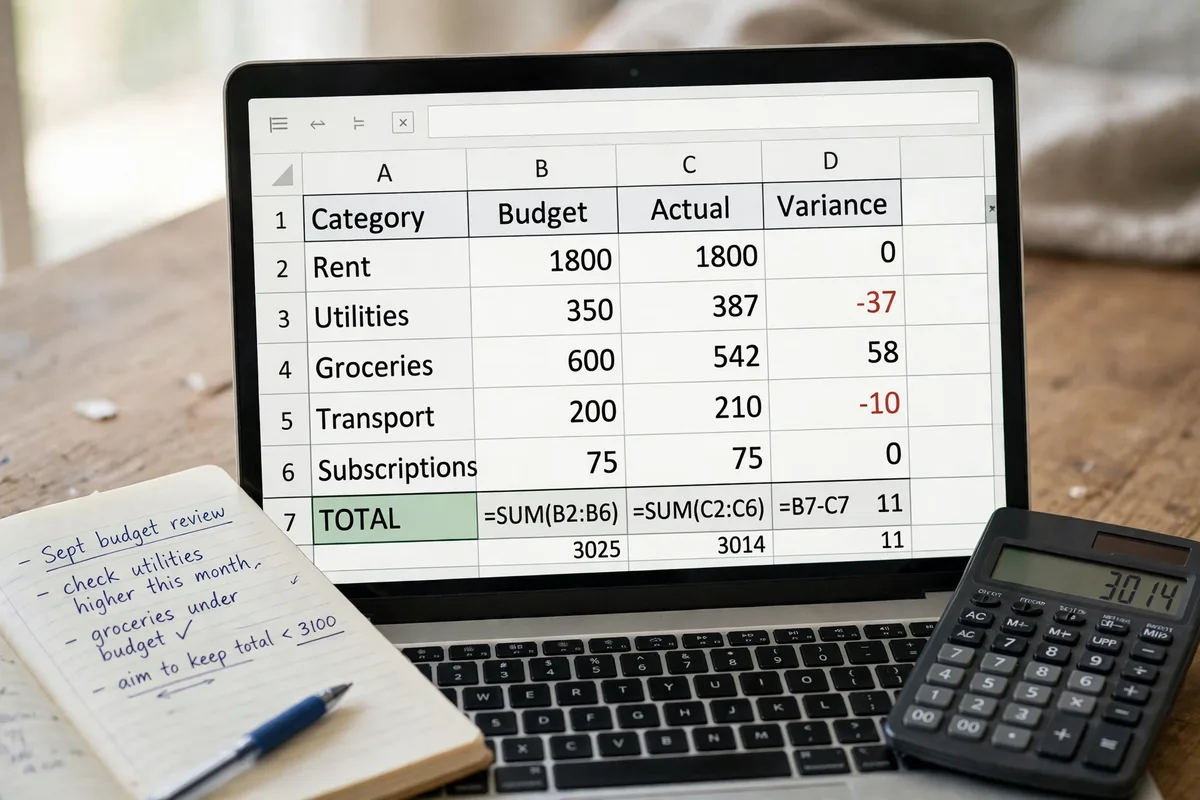
A worked month shows how a free budget template for Google Sheets behaves with real numbers: take-home pay of $4,200, with $3,900 assigned to categories and $300 left unassigned as a buffer, and 2 categories go over while the buffer covers the gap. The amounts below are examples for teaching, not benchmarks for your life.
| Category | Budget | Spent | Left |
|---|---|---|---|
| Housing | $1,400 | $1,400 | $0 |
| Groceries | $550 | $512 | $38 |
| Transport | $220 | $246 | -$26 |
| Dining out | $180 | $268 | -$88 |
| Savings | $500 | $500 | $0 |
| Buffer | $300 | $0 | $300 |
Two categories are over. The template does not judge you, it shows you where to move money. The $300 buffer covers the $114 overspend, and the honest conclusion is that next month’s dining-out budget should be $240, not $180, since a budget you break every month is a budget with the wrong number in it. I built my first budget sheet with 31 categories and stopped opening it by week 3, and the version I still use has 10 categories and one dashboard tab, which is why this guide keeps the list short.
How Do You Budget Irregular Income in Google Sheets?
To budget irregular income in a Google Sheets budget template, use last month’s actual pay as this month’s income, fund fixed costs first, and hold the rest in a buffer category until the next pay lands. A calendar-month budget on fortnightly or freelance pay always looks broken in month 2, so budget by pay period when your pay arrives weekly or fortnightly.
Follow this 4-step method for variable pay. First, list every fixed cost: rent, utilities, insurance, loan payments, and transport. Second, fund those fixed costs from the lowest pay you received in the last 3 months, not from your best month. Third, put the rest of each pay into a buffer category and release it to wants and savings only after the fixed costs are covered. Fourth, when a big pay lands, move the surplus to savings before it sits in checking, since money left visible gets spent.
Add 2 extra columns to the Categories tab for irregular income: a minimum amount for lean months and a target amount for good months. The Dashboard then shows the minimum as the plan and the target as the goal, so a slow month still has a working budget.

How Do You Use a Budget Template on Your Phone?
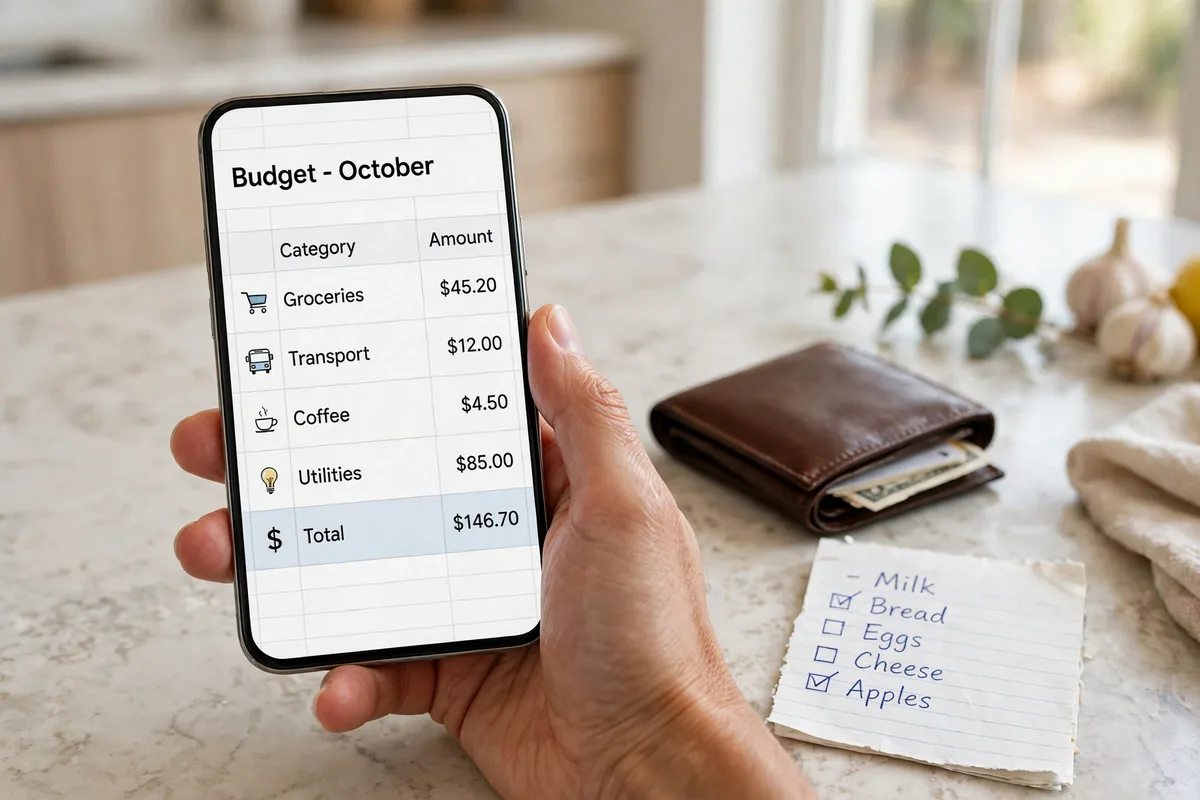
To use a budget template on your phone, open the copy in the Google Sheets app, check the Dashboard first, and log each purchase in the Transactions tab the same day, since a budget you cannot see at the store is a budget you will not follow. The Sheets app syncs in real time, so an entry typed at lunch shows on your laptop at home.
Make phone entry fast with 3 steps. First, put the Sheets app on your home screen and pin the budget file to the top of the app. Second, open the Dashboard before you shop and look at the 3 biggest categories, so you know what is left before you spend. Third, log the purchase in the Transactions tab the same day, with date, description, category, and amount, which takes about 20 seconds per row.
If typing rows kills the habit, build a Google Form with 4 fields: date, description, category, and amount. Link the form to a responses sheet, and an IMPORTRANGE formula pulls the responses into the Transactions tab. Every purchase then becomes a 10-second phone entry. Keep the form private to your own account, since anyone with the link can write rows into your budget.
Google Sheets also works offline with setup and sync, so a dead signal in a store does not block an entry. The entry syncs when the phone is back online.
How Do You Share a Budget Template With a Partner?
To share a budget template with a partner, share the file with named Google accounts, give view access to anyone who only reads the numbers, and give edit access only to the people who record spending. A shared budget file is a shared document about your household, so check the sharing setting before you send anything.
Set the file up for 2 people with 4 rules. First, add a “Paid by” column to the Transactions tab, so the sheet shows who spent what, not just what was spent. Second, agree on one weekly check-in, 10 minutes on Sunday, to review the Dashboard together and move money between categories. Third, keep one buffer category that either person can use without asking, which stops small surprises from becoming arguments. Fourth, never paste full bank statements into a shared sheet, and record amounts and descriptions only.
A household template suits 2 incomes and shared categories, while a single-person template is simpler and quicker to fill in. If your household has lumpy yearly costs, such as a car service in March and school costs in September, use an annual template or add a yearly-costs category that you fund a little each month.
Google Sheets vs Excel: Which Budget Template Wins?
Google Sheets wins for a budget template you enter on the go and share, while Excel wins for a budget kept on one desktop machine with heavy formulas, and both are free to start. The choice depends on where you type and who else opens the file.
| Factor | Google Sheets | Excel |
|---|---|---|
| Cost | Free with a Google account | Paid, or free in the browser with a Microsoft account |
| Phone entry | Strong, native app with fast sync | Usable, slower to open large files |
| Shared editing | Real-time, built in | Needs a shared file or cloud subscription |
| Offline | Works offline with setup and sync | Works offline by default |
| Heavy formulas | Fine for budgets, slower on huge models | Stronger on large, formula-heavy files |
| Best for | A budget you enter on the go and share | A budget kept on one desktop machine |
Pick Google Sheets if you log spending from your phone, share the budget with a partner, or want a free template with no download. Pick Excel if your file holds years of data with complex formulas, or your work computer does not allow Google Drive. The budget logic is the same in both: 3 tabs, 8 formulas, and one dashboard you check weekly.
7 Mistakes That Break a Google Sheets Budget
The 7 mistakes that break a Google Sheets budget are typing into the summary tab, storing dates as text, using 30 categories, skipping refunds, sharing edit access with the whole household, budgeting salary instead of take-home pay, and forgetting irregular costs. Each one is easy to fix once you see it.
- Typing into the summary tab. The moment a formula is replaced by a typed number, the sheet stops being a budget and becomes a note.
- Storing dates as text. “Oct 3” typed as text cannot be sorted or filtered by month, so enter real dates and then format them.
- Using too many categories. Thirty categories means 30 decisions per purchase, and people quit, while 12 is plenty to start.
- Skipping refund rows. A refund entered as a negative expense works, but a refund entered as income inflates your earnings and hides overspending.
- Sharing edit access with everyone. Use view access for anyone who only needs to see the numbers, and keep edit access to the people who record spending.
- Budgeting salary instead of take-home pay. Tax and other deductions never reach your account, so budgeting them as spendable money guarantees a shortfall.
- Forgetting irregular costs. Car insurance, annual subscriptions, birthdays, and holidays are real spending, so add a category for them and set a little aside each month, or they will ambush you.
The Consumer Financial Protection Bureau (CFPB) gives the same starting advice for any money plan: create a monthly spending plan that lists income and expenses before you decide what you can afford, and its guide to affording a car loan shows how that plan works in practice. A budget built on guesses falls apart in week 2, so use last month’s bank statement and real numbers.
Your First 30 Days With the Template
Your first 30 days with a free budget template for Google Sheets follow a simple rhythm: set the file up in week 1, log every purchase in week 2, fix the 2 worst categories in week 3, and carry the leftover forward in week 4. The habit matters more than the tool, which is why the routine below fits in 10 minutes a week.
| Week | Task | Time |
|---|---|---|
| Week 1 | Copy a template, set 8 to 12 categories, enter take-home pay | 30 minutes once |
| Week 2 | Log every purchase the same day, check the Dashboard on Sunday | 10 minutes |
| Week 3 | Fix the 2 categories that went over, adjust next month’s numbers | 10 minutes |
| Week 4 | Move leftover money to savings, download a backup copy | 15 minutes |
Run the Sunday check-in the same way each week. Open the Dashboard on your phone, look at the 3 biggest categories, and decide one change for the coming week. Move money from a category with room to a category that went over, note what happened, and carry on. Going over budget in one category is not failure, it is information.
Back the file up once a month with File, then Download, then Microsoft Excel, so a deleted sheet or a locked account never takes your financial history with it. A template you open weekly is a habit, and one you open monthly is a chore.

Frequently Asked Questions
Is there a genuinely free Google Sheets budget template?
Yes, Google’s own Monthly Budget template in the Sheets template gallery is genuinely free, and it works with a free Google account, with no email sign-up, no add-on, and no paid plan. Open Google Sheets, choose Template gallery, and look under Personal for Monthly budget. The Vertex42 Monthly Budget and the Sheets Bootcamp Budget Tracker are also free to copy.
Does Google Sheets have a budget template?
Yes, Google Sheets includes a Monthly budget template and an Annual budget template in its template gallery, and both are free with any Google account. The Monthly budget tracks one month of income and expenses with category totals and a summary chart. The Annual budget puts 12 months on one file, which suits seasonal work and quarterly bills.
How do I make a monthly budget in Google Sheets?
To make a monthly budget in Google Sheets, copy the built-in Monthly Budget template, type your take-home pay, list 8 to 12 categories with planned amounts, and log each purchase as one row on the Transactions tab. The Dashboard totals each category and shows what is left. Check the Dashboard for 10 minutes each Sunday and move money between categories when life changes the plan.
Can I use a Google Sheets budget template for free?
Yes, you can use a Google Sheets budget template for free, since Google Sheets is free with a Google account and the templates in this guide cost nothing to copy or use month after month. Some templates offer paid upgrades, such as Aspire’s $5-a-month Turbo plan for CSV import, but the core template stays free.
How do I share a Google Sheets budget template with my partner?
To share a Google Sheets budget template with your partner, share the file with their named Google account, give edit access only to the people who record spending, and add a “Paid by” column so the sheet shows who spent what. Hold a 10-minute Sunday check-in together to review the Dashboard and move money between categories.
What is the best free budget template for beginners?
The best free budget template for beginners is Google’s built-in Monthly Budget template, since it takes 5 minutes to open, syncs to your phone, and covers income, expenses, category totals, and a summary chart in one file. Pick Aspire Budgeting if you want a zero-based system, or the Vertex42 Monthly Budget if you want more category detail.
Conclusion
A free budget template for Google Sheets turns budgeting from a blank grid into a 5-minute start, and the file you copy today can run your money for years with 10 minutes a week. Start with Google’s built-in Monthly Budget template, use it for one full month, and only then decide whether to switch. The 3-tab structure, the 8 formulas, and the worked example in this guide give you a copy-paste-ready file and a build-your-own path, so you can pick the one that fits your life. A budget you open weekly is a habit, and a budget you open weekly is the one that shows you exactly where your money went, which is the one thing every other money decision depends on. More practical money guides like this one live on Savvy Cash Flow.