
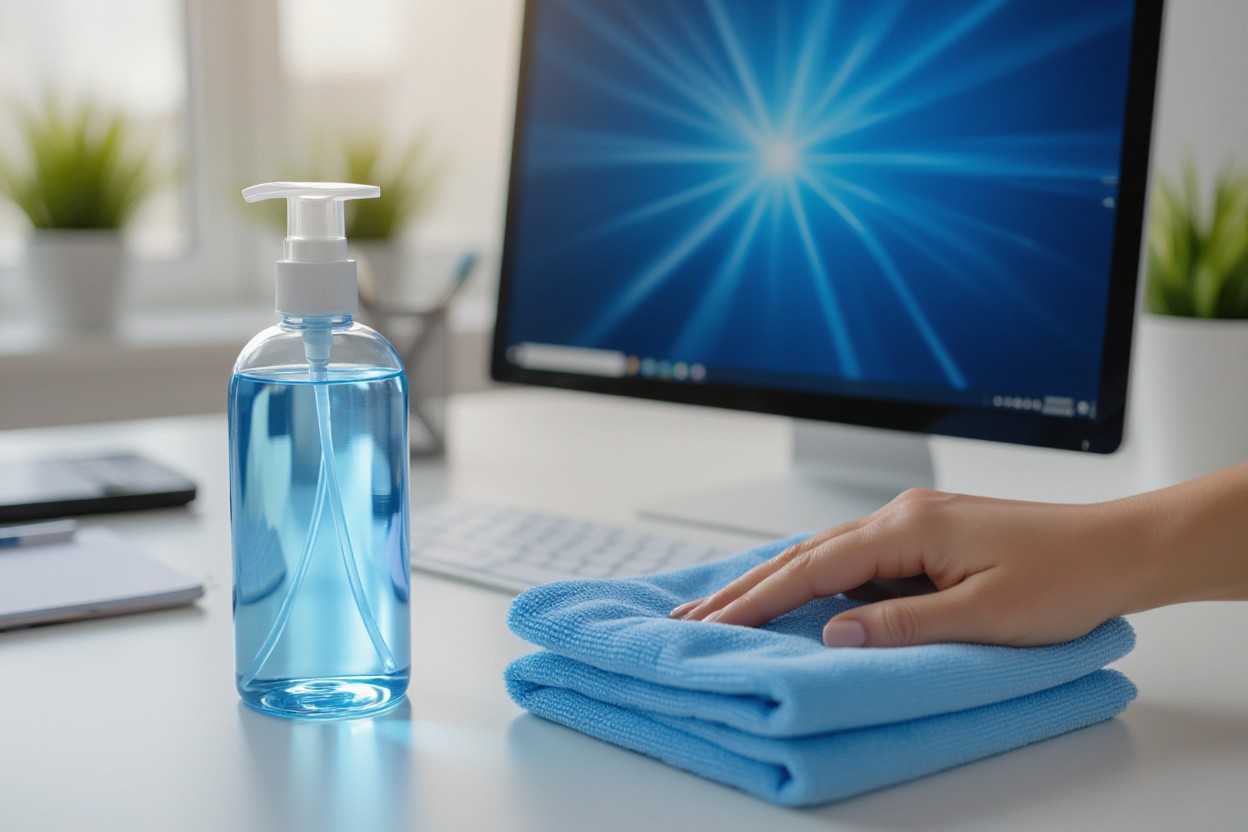
Over time dust and smudges degrade clarity and can trap oils that shorten screen life, so you should follow safe cleaning steps to protect your display. Use a soft microfiber cloth, gentle breathing-level pressure, and a manufacturer-approved cleaner or distilled water; avoid sprays directly on the panel, abrasive materials, or household chemicals to prevent damage and preserve touch responsiveness and coating integrity.
Types of Computer Screens
| LCD / LED | Most laptops and mainstream monitors are LED-backlit LCDs; they use a backlight plus liquid crystal layer and are pressure-sensitive, so use a microfiber cloth and minimal fluid when cleaning. |
| OLED | Self-emissive pixels give true blacks and high contrast; panels can show burn-in over years and often have delicate coatings—wipe gently and avoid abrasive cleaners. |
| IPS | A subtype of LCD with ~178° viewing angles and accurate color reproduction; professional displays often use IPS and may have glossy or matte finishes that affect cleaning technique. |
| TN | Budget-focused panels with very fast 1–5 ms response times and lower color fidelity; textured matte coatings can trap dust, so use soft, consistent strokes. |
| Touchscreen | Usually capacitive glass with an oleophobic layer to reduce fingerprints; oils accumulate quickly, and cleaning differs from passive panels—avoid excess moisture and abrasive pads. |
- Glossy screens show smudges more but are easier to wipe with a soft cloth.
- Matte/anti-glare coatings can be damaged by strong solvents—test in a corner first.
- Screen protectors (tempered glass) simplify cleaning and protect originals.
- Manufacturers often specify allowed cleaners—check your device model for exact guidance.
LCD and LED Screens
Most consumer laptops and monitors are LED-backlit LCDs that combine a thin LED light source with a liquid-crystal layer; you’ll commonly see 1920×1080 on 21–27″ monitors and 13–15″ laptops, and they’re sensitive to pressure and abrasive cloths—so you should use a soft microfiber, avoid ammonia-based sprays, and never press hard, since damage to the polarizer or pixel layer can be permanent.
Touchscreens
Modern capacitive touchscreens on tablets, phones, and many laptops have an oleophobic coating that reduces fingerprint visibility; you will notice oils build up after dozens of touches per day, and because the glass responds to electrical conductivity you must avoid puddles of liquid and abrasive pads—use a dry or slightly damp microfiber cloth and follow the device-specific cleaning allowances.
Manufacturers like Apple and Samsung allow using 70% isopropyl wipes on glass surfaces in many cases, and adding a tempered glass protector can preserve that oleophobic layer while making regular wiping safer; you should also avoid sharp edges and heavy pressure to prevent micro-scratches that degrade touch sensitivity. Perceiving how coatings, response type, and surface hardness differ will guide which cleaning method you choose.
Essential Tips for Safe Cleaning
You should power down and unplug your device before cleaning to avoid electrical issues and accidental input. Use a soft, lint‑free microfiber and apply cleaner to the cloth rather than the screen; that prevents liquid seeping into edges. When tackling fingerprints, work in gentle circular motions with low pressure to protect pixels and oleophobic coatings. Assume that harsh chemicals, paper towels, or abrasive pads can permanently damage coatings and pixels.
- Power off and unplug before you start
- Use a clean microfiber cloth (avoid paper towels)
- Apply liquid to the cloth, not the display
- Work gently in circular motions over stubborn smudges
Recommended Cleaning Solutions
You can use distilled water for routine dust and smudges; it avoids mineral streaks common with tap water. For disinfection or oil removal, a 50:50 mix of distilled water and 70% isopropyl alcohol is widely accepted for many glass and plastic screens—check your manufacturer first. Avoid ammonia, bleach, window cleaners, and acetone, since those strip anti‑reflective and oleophobic coatings and can cause clouding or discoloration.
Tools and Materials Needed
You’ll want a high‑quality microfiber cloth, a small spray bottle for diluted solutions, cotton swabs for edges, canned/compressed air for dust in ports, and optional soft brushes for vents; keep materials in a clean pouch. Choose distilled water and 70% isopropyl alcohol if disinfection is needed, and never use household glass cleaners or paper products on coated displays.
Pick a microfiber with 300–400 GSM for optimal lint pickup; thinner cloths can smear. Hold canned air upright and spray short bursts from about 6–8 inches to blow out loose debris without freezing components. Dampen a swab or corner of the cloth—don’t soak it—and test the solution on a hidden bezel area if you’re unsure about compatibility. Store everything in a sealed bag to avoid contamination between uses.
Step-by-Step Cleaning Process
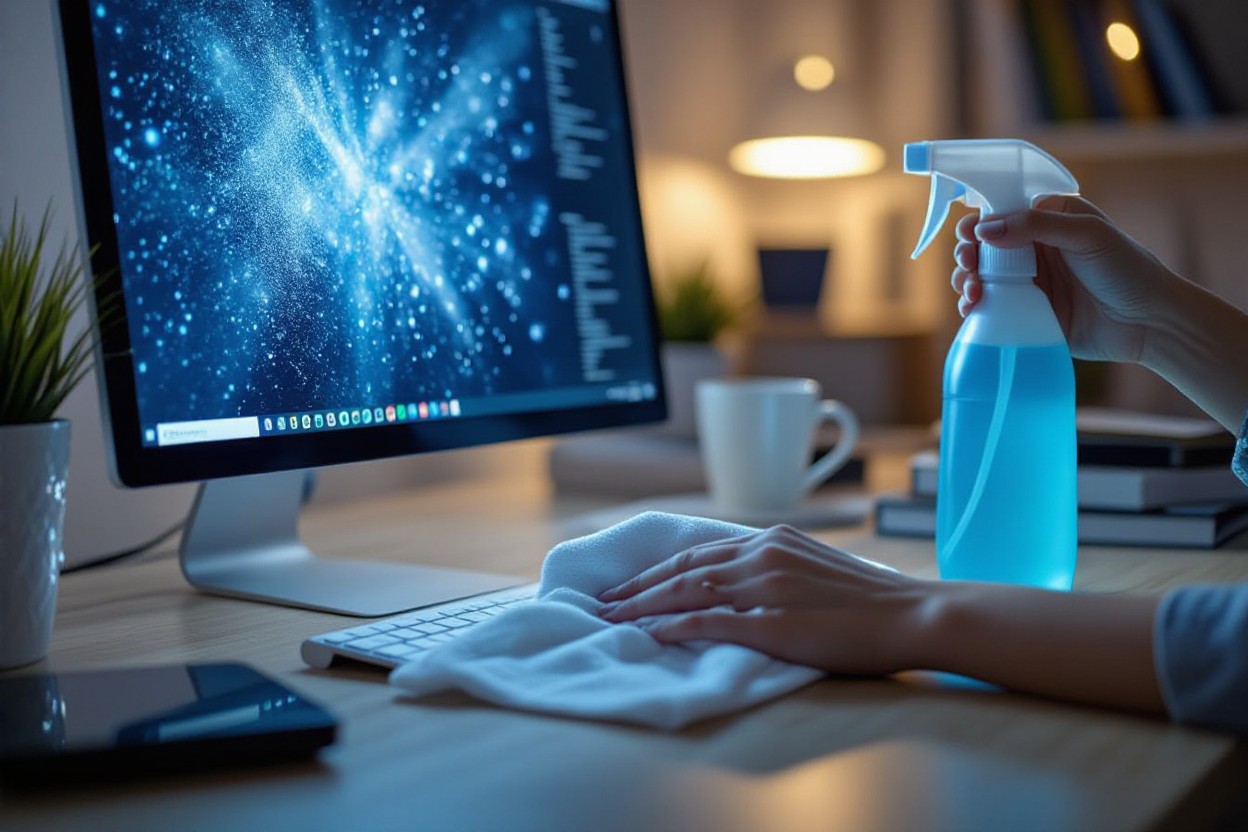
Work through these steps methodically to avoid damage: power down and unplug, remove loose dust, perform a dry wipe, treat smudges with a dampened microfiber, then finish with a dry buff. For a typical 24″ monitor allow about 5–10 minutes; multi-monitor setups may take 10–20 minutes. Always apply liquids to the cloth, not the screen, and keep compressed air at least 15 cm away when dislodging particles.
Cleaning Steps & Notes
| Step | Action / Details |
|---|---|
| 1. Power & unplug | Turn off, unplug, and let the screen cool for 2–5 minutes to avoid thermal stress. |
| 2. Dust removal | Use compressed air from ~15 cm or a soft brush to remove loose particles before wiping. |
| 3. Dry wipe | Use a lint-free microfiber cloth in gentle horizontal strokes to remove light dust. |
| 4. Treat smudges | Lightly dampen the cloth with distilled water or a 50:50 distilled water + 70% isopropyl mix; never spray the screen. |
| 5. Wipe technique | Glide from center outward with even, low pressure; avoid scrubbing and edges where coatings sit. |
| 6. Dry & inspect | Buff with a dry microfiber and inspect under bright, indirect light; repeat spot treatment if needed. |
Preparing Your Workspace
Set up on a stable, flat surface with a soft towel underneath to prevent slips and catch debris; work in bright, indirect light so you can spot streaks. Wash your hands or wear lint-free gloves to avoid transferring oils, and keep a labeled spray bottle of distilled water or a 50:50 mix within reach. Clear nearby electronics and close windows to minimize airborne dust during cleaning.
Cleaning Techniques
Begin with a dry microfiber wipe using gentle, even pressure in horizontal passes; avoid circular scrubbing that can wear coatings. For loose dust use compressed air held about 15 cm away, angled to push particles off the bezel. For fingerprints, dampen the cloth—never the screen—with distilled water or a 50:50 distilled water and 70% isopropyl alcohol solution, then wipe slowly.
When tackling stubborn marks, test your solution on a small, inconspicuous corner and wait 30 seconds for any reaction; if the coating looks unchanged, apply 1–2 light sprays to the cloth (not the screen) and glide from the center outward in overlapping passes. Matte panels respond best to lighter pressure and fewer passes, while glossy screens often need a final dry buff to eliminate streaks. Avoid ammonia, acetone, and household cleaners that can strip anti-reflective coatings.
Factors to Consider Before Cleaning
You should power down and unplug your screen, wait 5–10 minutes for heat to drop, and inspect whether the surface is glass, a coated anti‑glare panel, or OLED; each reacts differently to solvents and pressure. Check the device manual for warranty limits, avoid abrasive towels, and select a lint‑free microfiber sized for your display. Store cleaning solutions in labeled bottles and never spray directly onto the screen. Perceiving the coating and type of soil first lets you match technique and cleaner safely.
- Screen type: glass, LCD, OLED, matte/anti‑glare
- Coating sensitivity: oleophobic vs abrasive‑prone
- Level of contamination: dust, fingerprints, sticky residue
- Power state and cooldown time
- Manufacturer warranty and instructions
- Preferred cleaning supplies: microfiber, distilled water, 70% isopropyl
Screen Manufacturer Recommendations
You should consult the support page or manual for model‑specific rules: Apple, Dell, and Samsung generally advise a soft, lint‑free cloth and warn against ammonia‑ or bleach‑based cleaners; many state do not spray liquids directly on the display. Several vendors permit gentle use of 70% isopropyl for disinfection in limited cases, but you must follow the exact steps they list to avoid voiding warranty or stripping coatings.
Type of Smudges or Dirt
Oily fingerprints are organic oils that respond to a lightly damp microfiber or a mild soap solution (one drop of dish soap per 500 ml distilled water), while loose dust is best removed dry with a blower or microfiber; mineral spots from hard water may need distilled water to avoid deposits. Choose method and solvent based on whether the mark is oily, particulate, or mineral.
For dust use a handheld air blower at 10–20 cm and sweep with a clean microfiber; for fingerprints apply barely damp circular strokes and finish with gentle straight wipes to avoid streaks. Test any solvent on a 1 cm corner; if the finish dulls, stop. Avoid paper towels and scrubbing—apply pressure equivalent to holding a pen, not pressing hard, and allow the screen to dry fully before powering on.
Pros and Cons of Different Cleaning Methods
You’ll weigh speed, safety, and residue when choosing a method: some remove oils quickly but risk coatings, others preserve finishes but need more effort; manufacturers often recommend soft microfiber and distilled water over solvents, and studies show 70% isopropyl is effective for disinfection without excessive coating damage when used sparingly.
| Pros | Cons |
| Microfiber: lifts oils and dust, reusable | Can trap grit and scratch if dirty |
| Distilled water: safe, no mineral streaks | Less effective on oily smudges alone |
| 70% isopropyl mix (50/50 with water): disinfects well | Frequent use may dry coatings if overapplied |
| Commercial wipes: convenient, pre-measured solutions | Some contain alcohol/ammonia that harms coatings |
| Compressed air: removes loose dust without touching | Can push debris into ports or condense if misused |
| Vinegar solutions: effective on mineral film | Can etch anti‑reflective coatings if too strong |
| Steam cleaners: loosens grime without chemicals | Heat and moisture risk delamination or electronics |
| Paper towels: absorbent and cheap | Fibrous and abrasive; often causes micro-scratches |
Home Remedies vs. Commercial Products
You can use a 50/50 mix of distilled water and 70% isopropyl for tough oils, which many technicians recommend, while commercial screen wipes offer convenience and verified pH or alcohol levels; however, you should avoid DIY mixes with ammonia or undiluted vinegar because manufacturers like Apple and Dell advise against those for coated displays.
Dry vs. Wet Cleaning Techniques
You should use dry microfiber and compressed air for daily dusting and switch to a barely‑damp microfiber (spritz the cloth, not the screen) for fingerprints or sticky residues, keeping liquid contact minimal and wiping gently in one direction to protect coatings.
Dry methods work best for routine maintenance: use a clean microfiber (200–400 GSM) and short compressed‑air bursts from 10–15 cm away to dislodge particulates. Wet methods are for oils or stains apply solvent to the cloth, not the display, and use a 50/50 distilled water and 70% isopropyl solution for persistent smudges; avoid soaking, let the screen air‑dry for a minute, and never use window cleaners containing ammonia or abrasive materials.

Common Mistakes to Avoid
Many problems stem from the same few habits: using abrasive materials, spraying liquids directly, and cleaning too often. You risk scratches, streaks, and degradation of anti-reflective or oleophobic coatings when you reach for paper towels, ammonia-based cleaners, or rough sponges. Opt for a lint-free microfiber and a manufacturer-approved or 70% isopropyl solution applied to the cloth, not the screen, and limit cleaning to visible soil or routine light maintenance.
Using Incorrect Materials
Paper towels and ordinary tissues leave micro-abrasions and lint that become visible under bright monitors, while cleaners like Windex (ammonia-based) can strip coatings over repeated use. You should avoid household sprays, bleach, and abrasive pads; instead use a clean microfiber cloth and either distilled water, a 70% isopropyl wipe on the cloth, or the cleaner recommended by your device maker to preserve coatings and prevent scratches.
Over-Cleaning the Screen
Cleaning too frequently or applying heavy pressure accelerates wear on anti-reflective and oleophobic coatings and can create permanent damage; for most monitors clean once every 1–2 weeks, while high-touch devices like phones may need a gentle daily wipe. Use light, circular motions with low pressure and let solvents evaporate fully rather than rubbing aggressively.
Signs of over-cleaning include persistent streaks, rainbow halos, reduced touch responsiveness, and glossy patches where coatings have thinned. If you must disinfect often (shared kiosks or medical settings), alternate 70% isopropyl wipes with dry microfiber swipes and allow the screen to air-dry; this limits solvent exposure, helping coatings last months longer compared with constant wet cleaning.
To wrap up
Considering all points, you should power down and use a soft microfiber cloth with minimal pressure, dampening it only with distilled water or a screen-safe cleaner applied to the cloth (never sprayed directly on the screen). Avoid abrasive materials, household cleaners with ammonia, and excessive moisture; gently remove dust and smudges regularly to keep your display clear and undamaged.
FAQ
Q: What supplies do I need to clean my computer screen safely?
A: Soft, lint-free microfiber cloth; distilled water; a screen-safe cleaner or 70% isopropyl alcohol (only if the manufacturer allows); compressed air (optional); a spray bottle for diluted solutions. Avoid paper towels, tissues, household glass cleaners, ammonia, bleach, and abrasive pads.
Q: What is the step-by-step method to remove dust and smudges without damaging the screen?
A: Turn off and unplug the device. Use compressed air or gently brush with a dry microfiber cloth to remove loose dust. Lightly dampen the cloth (do not spray the screen) with distilled water or a manufacturer-approved cleaner and wipe with gentle, even strokes from top to bottom or in small circular motions. If using alcohol only do so when the maker permits and apply to the cloth, not the screen. Let the screen air-dry before powering on.
Q: Can I use isopropyl alcohol, vinegar, or household cleaners on my screen?
A: Most household cleaners, window cleaners, vinegar, and products with ammonia or bleach can damage anti-reflective coatings. Some manufacturers allow up to 70% isopropyl alcohol on glass surfaces, but many screens and coatings are sensitive to alcohol. Check the device manufacturer’s guidelines and, if allowed, apply alcohol to the cloth not directly to the screen—and use sparingly.
Q: How do I remove stubborn fingerprints or greasy smudges safely?
A: Apply a small amount of distilled water or a recommended screen cleaner to a microfiber cloth and press gently over the smudge to soften oils. Wipe in one direction without heavy pressure, repeating with a clean portion of the cloth until the mark lifts. For tough marks on glass where the manufacturer permits, lightly use isopropyl alcohol on the cloth; avoid aggressive rubbing and never use abrasive tools.
Q: Are there special precautions for touchscreens, OLED, or anti-glare displays?
A: Yes. Touchscreens and anti-glare coatings are more delicate use only manufacturer-approved cleaners or plain distilled water and very soft microfiber; avoid alcohol unless explicitly allowed. OLED and some modern displays have sensitive coatings minimize liquid exposure, never spray directly, and avoid vigorous rubbing. Consider using a protective screen film to reduce cleaning frequency and the risk of damage.